How to Update NZXT CAM and Fix Stuck Installs
NZXT CAM usually updates silently in the background, but failed patches can freeze your fan curves or brick pump firmware. Here is how to update cleanly and troubleshoot common errors.
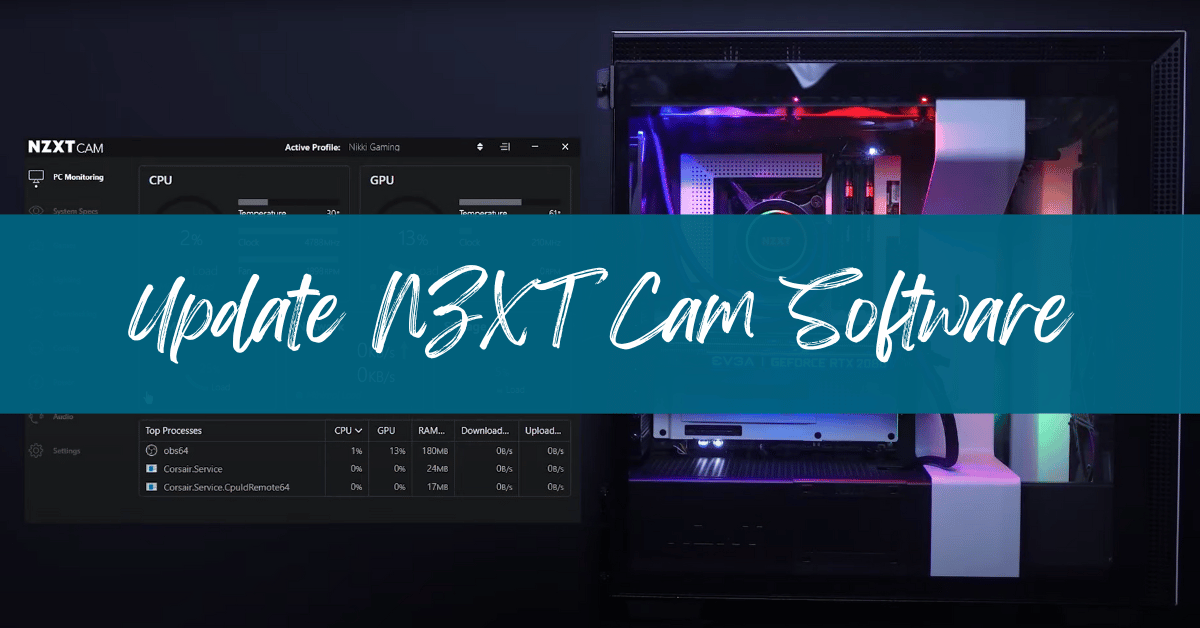
How to Update NZXT CAM (The Fast Method)
NZXT CAM handles updates automatically by default whenever you launch the application with an active internet connection. If an update hangs or fails to trigger, you can force a manual check directly inside the interface in about ten seconds.
- Open NZXT CAM and click the Settings (gear icon) in the bottom-left panel.
- Select the General tab from the navigation list.
- Scroll down to the App Version section. If an update is pending, a direct Update Now button will appear next to the version string.
- Click the button, let the installer download the package, and allow CAM to restart automatically.
If the client shows you are on the current build but your hardware is misbehaving, or if the update button simply spins indefinitely, do not waste time waiting on the internal updater. Close the app from the Windows system tray, download the latest standalone web installer directly from NZXT's website, and run it over your existing install. It overwrites corrupted files without wiping your custom fan curves or lighting profiles.
Updating Device Firmware in NZXT CAM
Software updates and hardware firmware updates are two different beasts in the NZXT ecosystem. CAM is the Electron-based desktop interface; firmware is the microcode flashed directly onto the microcontrollers inside your Kraken AIO, Smart Device V2, or RGB & Fan Controller via your motherboard's internal USB 2.0 header.
When NZXT pushes a firmware patch for hardware—often to fix cold-boot USB detection bugs or LCD screen flickering on Kraken Elite coolers—CAM flags a banner across the top of the window. Flashing firmware requires extra caution:
- Never unplug internal USB headers or kill power while a firmware bar is progressing. A severed connection mid-write can soft-brick the controller board on a $280 Kraken Elite 360.
- Close competing hardware utilities like HWInfo64, AIDA64, or ASUS Armoury Crate before starting a firmware push. These utilities poll the same USB endpoints simultaneously and can cause the flash routine to time out.
- Restart your PC entirely after the firmware flash concludes so the motherboard's USB root hub re-enumerates the device.
Troubleshooting Frozen Updates and Loop Errors
CAM has a reputation among system builders for occasional update headaches. The software uses a multi-process Electron wrapper that leaves background processes running even after you click the red 'X' in the corner. If an update crashes midway through, here is how we fix it in the test lab.
1. Kill Ghost Processes in Task Manager
Press Ctrl + Shift + Esc to open Task Manager. Look for any active entries named NZXT CAM, NZXT CAM Helper, or nzxt-cam-updater.exe. Right-click and end all of them. If the updater process is locked in Windows memory, running a new installer will fail silently.
2. Clear the Cached AppData Folders
Corrupted local cache files are the primary cause of update loops where CAM downloads a patch, restarts, and immediately attempts to download the exact same patch again. To nuke the bad cache:
- Press
Windows Key + R, type%appdata%, and hit Enter. Locate the NZXT CAM folder and delete it. - Press
Windows Key + Ragain, type%localappdata%, and locate the nzxt-cam-updater directory. Delete that folder completely. - Reinstall the latest CAM build. You will need to log back into your NZXT profile or select Guest Mode.
CAM Stable vs. Beta vs. Third-Party Control
You do not necessarily have to stay on the standard release track, nor do you even have to use CAM if all you want is pump control. Here is how the current software options compare for managing NZXT hardware.
| Option | Update Frequency | Resource Usage | Best For |
|---|---|---|---|
| NZXT CAM (Stable) | Monthly / Bi-monthly | Moderate (~150–300 MB RAM) | Everyday users who want simple LCD screen setup and RGB profiles. |
| NZXT CAM Beta | Bi-weekly | Moderate | Enthusiasts testing new LCD GIFs or early support for newly launched NZXT cases. |
| Liquidctl (Open Source) | Community-driven | Near Zero (CLI / Daemon) | Linux users or minimalists who hate Electron bloat and telemetry. |
| Fan Control + Plugin | Regular patches | Very Low (<30 MB RAM) | Power users pairing Kraken pumps with custom GPU/VRM thermal curves. |
Our editorial take: if you only bought an NZXT cooler for its hardware quality and do not care about displaying custom system stats on an LCD screen, we'd skip running CAM 24/7. Pairing the free, lightweight Fan Control tool with the open-source Liquidctl plugin gives you quieter, more reliable curve management with zero background telemetry.
Post-Update Optimization: Taming Background Load
After a major update, NZXT CAM occasionally resets your telemetry and startup toggles. Take two minutes to verify these settings to keep your system lean:
- Switch to Guest Mode: Unless you use NZXT's cloud profile syncing across multiple rigs, you do not need an account. Guest Mode keeps your profiles locally and stops unnecessary cloud handshakes.
- Disable Hardware Acceleration: If you notice mini-stutters during high-refresh 1440p or 4K gaming, open CAM Settings > General and turn off Hardware Acceleration. This prevents CAM from competing with your games for GPU render threads.
- Turn Off Anonymous Data Tracking: Head to the Privacy tab in Settings and untick data collection. It prevents the client from constantly uploading usage metrics to NZXT's analytics endpoints.
FAQ
Will updating NZXT CAM reset my custom fan curves and lighting?
Standard updates preserve your local configuration files, which are stored in your Windows user directory. However, if you perform a complete uninstallation using third-party cleaning tools or manually purge your AppData folder, your custom RPM curves and RGB layouts will reset to factory defaults.
Can I run my Kraken cooler without updating or keeping CAM open?
Yes. Modern NZXT Kraken coolers store your last active pump profile directly in onboard hardware memory. Once configured, the pump maintains its cooling profile based on liquid temperature even if CAM is completely closed, though dynamic LCD displays will freeze on their last frame without the background software active.
Why does NZXT CAM say 'No Device Found' after a software update?
This typically happens when the update installer fails to restart the underlying NZXT USB driver service. Unplug any other high-bandwidth USB devices temporarily, perform a complete cold shutdown (turn the power supply switch off for 30 seconds), and boot back up. The motherboard will re-poll the internal USB 2.0 header and CAM will recognize the hardware.